Thursday, November 22, 2018

What is Skrill PIN Authentication?

1. What is PIN Authentication? 

  • The PIN Authentication is an additional security feature that helps you increase the security level of your Skrill account. You can use the PIN Authentication as a challenge upon login when you send or withdraw money. 

2. How to set up my PIN Authentication? 

  • If you are eligible, you will see this security prompt when you log in. To start the process click the Create a PIN button.


* Click to enlarge the image

  • If you do not see this security prompt, you can also set a PIN within [My Account] by navigating to ‘PIN management’ under the Settings tab and clicking on the Create your PIN link. 
  • Once you have clicked Create a PIN, you will be asked to enter your new PIN and matching PIN to confirm. 
  • Please note that your PIN must follow these requirements:
  • - PIN must match the confirmation PIN
  • - Must be 6 digits
  • - PIN must be strong. Don’t choose a pin that is too easy - any repeating 6 (e.g. 111111, 555555, etc.) or 6 consecutive digits (e.g. 123456, 234567, etc and 987654, 876543, etc).

 I have forgotten my PIN and I cannot login to my Skrill account, what should I do?

  • To reset your PIN, you will need to request a PIN reset link, which is sent to your email along with instructions to reset your PIN. 
  • You can request an email to Reset PIN easily online within your My Account Settings or, if you cannot access your account, you will need to call Skrill Customer services.

To reset PIN via MyAccount > Settings

  • You will need to login to your [Skrill Account] and click on the Settings tab to navigate to PIN management where you will see a link to Reset your PIN.
  • After clicking the Reset your PIN link, an email will be sent to you with a link and instructions to reset your PIN.

To reset PIN, by calling Skrill Customer services

  • You can reset your PIN by calling Skrill Customer services on any of the numbers listed on our contact page. To do so, please click on the available channel bellow. When calling customer services, please have your Customer ID ready. 
  • After successfully verifying your identity, the agent will send an email with a link to reset your PIN. Once the email is received, the link will only be valid for 24hrs.
  • You will be directed to the reset PIN page. Otherwise please call customer service to request a new reset PIN link.
  • At the reset PIN page, you can enter a new 6 digit PIN and matching PIN to confirm before clicking ‘save’. You will be alerted if the PIN entered is invalid.
  • If PIN is valid, a new PIN will be set and you will receive a confirmation email.

What do I need to open an account with Skrill?

To open an account with Skrill, all you need is an active email address. Sign Up Now.


* Click to enlarge the image

Then fill the gap with your valid information. It's so easy and simple to create a Skrill account!

Wednesday, November 21, 2018

How do I reset my Skrill password?

You can reset your Skrill password yourself by following our automated password retrieval procedure.

On the log in page, click on the Forgot your Password link. Enter the e-mail address registered on your Skrill account, and hit Submit. You will then receive an e-mail from us instructing you how to reset your password.

If you are unable to complete the procedure using the automatic process, simply contact us by clicking on the available contact channel below, and our team will make sure to assist you accordingly.

How do I change my account password?

If you have forgotten your NETELLER account password, you can easily reset it by following the steps below:

1. Go to the Sign In page on NETELLER.com

2. Click on the Forgot Password link at the bottom right side of the login page.

3. Enter your First and Last name, and your e-mail address as registered in your NETELLER account.

4. When clicking on Continue, a link will be sent to your e-mail address.

5. Click on the received link, enter your new password and confirm it.

Note: For security reasons, your password must contain letters (both capital and small), numbers, and special symbols, and it must be at least 8 symbols long, e.g. Gf087gif!
(collected from neteller official website)

What is two-step authentication and how to use it?

1. What is two-step authentication?

Two Step Authentication is an added security measure available on your account. It provides an additional layer of security to your account by requiring a code from your smartphone to be entered along with your email and password. The code then is used to sign in to your NETELLER Account or on a merchant cashier page in place of the Secure ID.

Note: Two-step authentication is not available for Windows Phone.

2. How do I enable two-step authentication?

    1. In your NETELLER Account click on Settings and then on Security.

    2. In the Two-step authentication section click on Enable.


    * Click to enlarge the image

    3. If you have not previously entered your Secure ID in the current session, you will be required to enter it before continuing the flow. If you cannot remember your Secure ID, you can click the Reset Secure ID button.

    4. Select your device from the list of supported devices, click Continue and follow the on-screen instructions for your specific device.


    * Click to enlarge the image

    5. Install the Google Authenticator app from the Apple app store or Google Play store on your phone.

    6. Scan the QR barcode displayed to you on the setup screen.

    7. Enter the 6-digit authentication code generated by the Authenticator app. and click on Continue.

Note: Blackberry users cannot scan a barcode and must follow the manual entry instructions.

3. I cannot scan the barcode while setting up the two-step authentication. What should I do?

If you are having trouble scanning the barcode, you can enter the code manually to successfully setup your device by click on Can’t scan the barcode? and follow the instructions.

Note: Blackberry users will be directly presented with instructions on how to setup their device manually.


    * Click to enlarge the image

4. How do I the use two-step authentication?

    1. Go to https://member.neteller.com and sign into the member’s account by entering your email/account ID and your password.

    2. Open your Google Authenticator app on your device in order to obtain an authentication code.

    3. Enter the unique one-time authentication code generated by your mobile application into the Authentication code field and click on Verify code.


    * Click to enlarge the image

Note: If any portion of your sign in attempt is incorrect - including the Two-step authentication code - you will be returned to the sign in form and presented with the standard error message of: "Some of the information you have entered is incorrect.". Then you will be required to re-enter ALL sign-in credentials at this point.

5. How to use NETELLER at a merchant site (cashier page)?

    1. Initiate your transaction on the merchant site as usual.

    2. Where the merchant asks for your NETELLER Secure ID, you will now be required to enter your unique one-time authentication code generated by your mobile application.

    3. Use the Google Authenticator app on your mobile device to generate this authentication code.

    4. Enter the code in the space that asks for your NETELLER Secure ID.

6. What is a trusted device and how do I use it?

Trusted Devices are devices that you can request to remember during the authentication process. Setting a device as trusted allows you to sign into your NETELLER account from that device without being required to complete a security check. To set a device as trusted, you need to select the Trust this device option on the login page. Next time you sign into your NETELLER account from this device, you will not need to pass any additional security check.

7. How can I remove a device?

The Trusted Devices section will only appear in your NETELLER account if you have set up a device as trusted. To remove a device, follow the steps bellow:

    1. On the Settings section from your NETELLER account, click on Security.

    2. Click on Remove next to the device you would like to remove.


    * Click to enlarge the image

    3.A pop-up window asking you to confirm the removal will appear. Click on Yes in order to confirm the action.

8. My phone was lost or stolen. What should I do?

If your phone has been lost or stolen, you will need to contact us to help you disable two-step authentication. To do so click on the available contact channel below.

9. I deleted the account on the Google Authenticator app. What should I do?

All devices allow the owner to remove accounts from the Google Authenticator. Removing an account on a user's device does NOT mean that two-step authentication has been disabled on the NETELLER Account.

If you have removed your NETELLER Account from your device and attempt to sign in to your NETELLER account, you will still be challenged with the two-step authentication code. If this happens, you will need to contact us by clicking on the available contact channel below.

10. How do I disable two-step authentication from my NETELLER Account?

    1. On the Settings section from your NETELLER account, click on Security.

    2. Click on Disable into the Two-step authentication section.

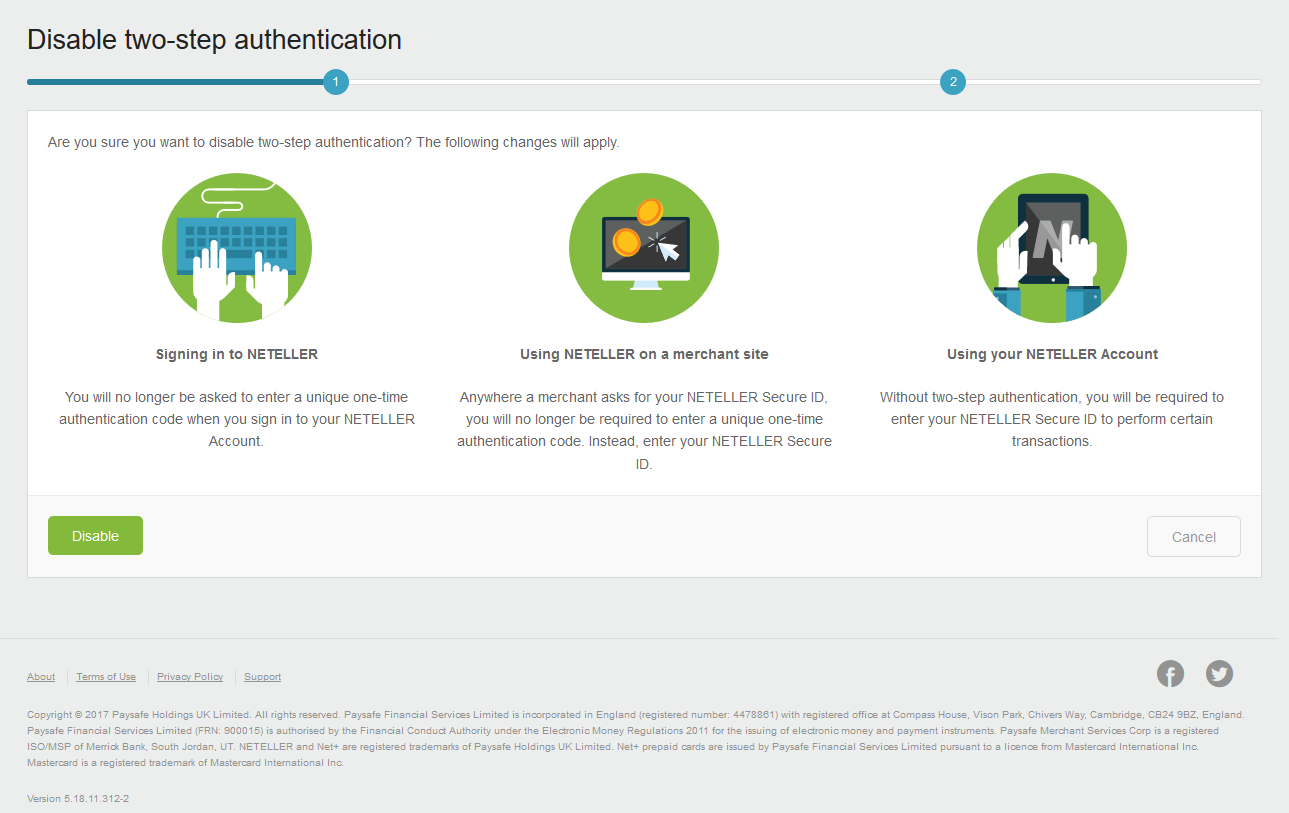
    3.A screen asking you to confirm your action will appear. Click on Disable to finalize the process.


 * Click to enlarge the image

Once you have disabled the two-step authentication, you will be presented with the option to reset your Secure ID. We recommend you to do so in order to be able to continue making transactions within your NETELLER account.

Featured Post

How to verify your bet365 account?

The quickest way to verify your documents is to upload these via the Know Your Customer section of the website, where you will also find g...

Popular